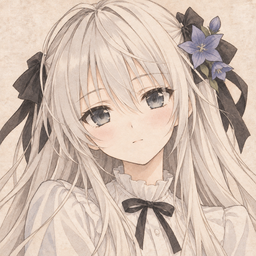
 栞
Companions
The chat companions in the lower-left corner, their names, what they can and can't do, portrait and size, model providers and permissions, and how to hide them.
- Desktop appAvailable in 0.2.8
- WebsiteNot available yet
On this page
The companions#
- Desktop appAvailable in 0.2.8
- WebsiteNot available yet
The desktop app has a companion button in the lower-left corner. Each character keeps its own conversation history and settings.
- Chat is off by default. Turn it on and choose a provider: the galbd bridge (administrators only), an OpenAI-compatible service, or Anthropic. The service address must use HTTPS, and changing the address clears the saved key.
- Four permissions are off by default: read your library, read your notes, read your play history, and propose actions.
- A companion can only propose changes (status, score, progress, short review, or batch actions if allowed). Every change waits for you to confirm with a button, and a pending proposal is cancelled if you switch to another companion. It has no access to the command line, your files or the network beyond the chat itself.
- It runs only when you send a message.
Names and identities#
- Desktop appAvailable in 0.2.8
- WebsiteNot applicable
| Name | English UI | Notes |
|---|---|---|
| 小饭桶 | Xiao Fantong | The default companion, called 小栞 in 0.2.5. Same companion: its settings and conversations are kept. |
| 渚 | — | |
| GPT 娘, Claude 娘, GLM 娘 | — | |
| 绪方理奈 | Rina Ogata | New companion. |
| 春日野穹 | Sora Kasugano | New companion. |
Names keep their original form in every language; the English interface adds the romanisation as secondary text. Renaming 小栞 to 小饭桶 does not rename GalShelf or its 栞 brand, and your earlier messages are never rewritten. If you had given the companion your own name, it stays. Settings search still finds "小栞".
The artwork of 绪方理奈 and 春日野穹 is marked 新立绘 · 已验收 / New art · accepted: they are fan-made pieces based on existing assets, not official art. A character without delivered art shows 立绘尚未交付 / Art not delivered yet instead of substitute art. Adding a character doesn't download anything or connect a model.
Portrait and size#
The portrait block in Settings → 小助手 / Companion shows the portrait the active character uses and whether it is the delivered art or a custom one:
- 选择图片… / Choose image… sets your own PNG, WebP or JPG image (up to 10 MB; a portrait-oriented image with a transparent background works best) as the active character's portrait. The image is used as it is: the app keeps a copy in its data folder and does not crop or edit it.
- 恢复交付原图 / Restore delivered art switches back to the delivered original after you confirm. The custom file stays in the data folder but is no longer used; the original art files are never changed.
- 小助手立绘大小 / Companion figure size sets how tall the figure stands in the free space of the left sidebar, separately for each character; see Resizing below.
The companion itself has no image-editing tools (erasing, selections, undo and so on). A custom portrait saved by an earlier version keeps working and can be restored to the delivered art at any time.
Resizing#
Each character keeps its own size, stored on this device. A character you have not resized uses the default size (120–520 px, default 280; a size chosen in an earlier version stays the default size).
- Right in the sidebar: point at the companion (on a touch screen, tap it first) and a small handle appears above its head. Drag it up or down to make the figure bigger or smaller; the size is saved when you let go. Double-click the handle, or click the reset button next to it, to go back to the default size. From the keyboard, Tab to the handle and use the Up and Down arrow keys (10 px per step, 40 px with Shift), Home for the smallest and End for the largest size.
- In Settings: Settings → 小助手 / Companion → Companion figure size names the current character (for example Current character: 小饭桶); the quick choices and the slider change only that character, and Reset to the default size clears its own size. Reset this section resets every character and the default size.
- Switching characters keeps each one's size: making 小饭桶 smaller does not change 绪方理奈 (Rina).
- Wider art (such as 小饭桶) is scaled down a little more so every character looks about the same size. The figure shrinks automatically when the window is too small and never covers the navigation; the saved size is kept and comes back when the window is taller, and the handle only goes as large as the window allows.
- The handle appears only in the expanded sidebar: there is none in the collapsed sidebar, in narrow windows, with illustrations off or with the companion turned off, and big-screen mode shows no figure. Resizing changes only the displayed size; the image itself is never modified.
Hide the companion#
- Desktop appAvailable in 0.2.8
- WebsiteNot applicable
Settings → 小助手 / Companion → 在左下角显示小助手 / Show the companion in the lower-left corner (companion.enabled, on by default, stored on this device). In the classic interface the same switch is in the companion panel. When it is off:
- the button and panel disappear and no invisible area is left to catch clicks;
- the app makes no companion requests;
- navigation and the welcome tour work as usual.
The daily quote card is not part of the companion and stays. Turn the switch back on at any time; your companions and histories are still there.
On the website#
On the QQ group web app, the lower-left character only opens the guide. There is no chat on the website.
Privacy#
What a companion sends to your model provider depends on the permissions above. With all permissions off, only your message is sent. Keys you enter are stored encrypted on this computer.